Android
Distribute Android builds to beta testers
Introduction
When distributing Android builds via Buildstash, developers can upload both .apks and .aabs while allowing users to directly install to their device. If you upload an AAB file, Buildstash will automatically generate a universal APK for you.
Testers can receive email notifications of shared releases, or direct share links to install an Android build.
Prepare your device
Prior to installing an Android app via side-loading (i.e. not directly via the Play Store), you will need to allow installation from "unknown sources", if you have never done this before.
For Android 9.x and above
- Tap "Install" on the Buildstash download page in your web browser. This will download the app build to your device
- Once downloaded, if you haven't previously allowed "unknown app" installs via this browser, a prompt will appear - tap "Settings", and then "Allow from this source"
- You can also find this option manually via "Apps & notifications" > "Special app access" > "Install unknown apps"
- Return to the install dialog, and complete install
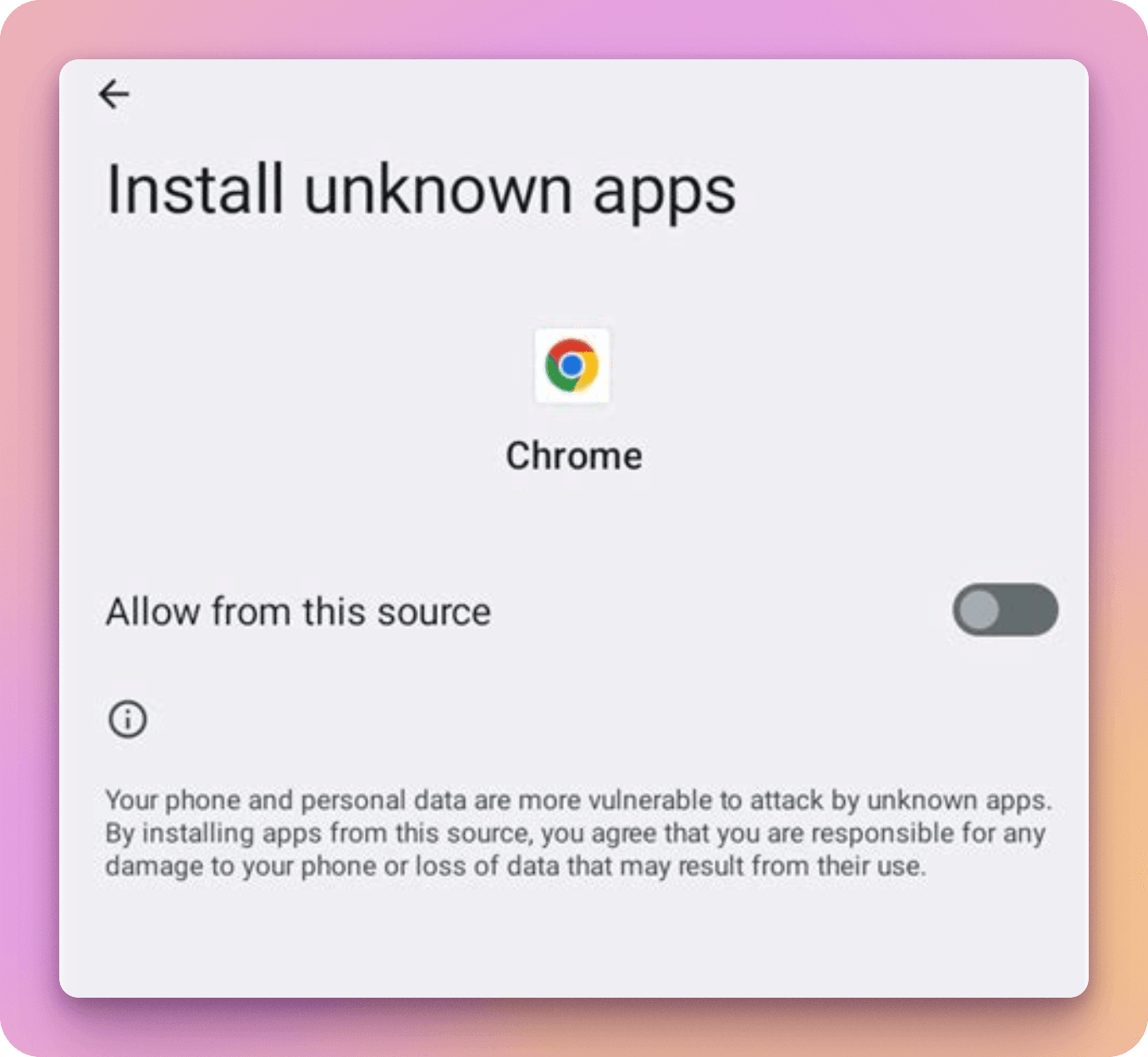
Note: Android 8 Oreo removed the generic option allow unknown sources from settings.
Android 8.x and above
- Select your device "Settings"
- Search for "special access", and select
- Tap "Install unknown apps"
- Select your web browser you are using to browse Buildstash and download app builds. Tap "Allow" from this source, ensuring it's toggled on
Android 7.x and below
- From your Home screen, navigate to device "Settings"
- Find "Security" or "Lock screen and security" (the name for this section may vary by device)
- Find "Unknown sources", and ensure it's switched on
Troubleshooting
In case you encounter any issues installing an Android app, there are a few common causes and solutions:
-
When installing the app, if you get an "Install Blocked" because of an unknown sources error, you must "allow unknown" apps or sources, following the steps for your Android version detailed above
-
When installing the app, you see a "There was an Problem Parsing the Package" error, there may be a few causes:
- The application may not have downloaded successfully, you should try again
- Application might not be compatible for your Android version or device. You should see the minimum Android OS version on the download page. Contact the developer if in doubt
- Security settings may not be configured correctly, double check for your OS version above
- APK may be corrupted. If all else fails, contact the developer to confirm
- The name of the package may have been changed after signing - the developer will have to correct this
If an initial install fails, it is advised to rule out the above causes, attempt downloading and installing once more, and contact the app developer if issues persist.