Permissions
Manage permissions and roles for your workspace and application
Introduction
In Buildstash you can configure user roles at both workspace and application levels, to control access to your builds and releases.
Workspace roles
For all users you want to have internal access to your workspace, such as direct collaborators, those you want to have access to internal build metadata, to upload builds or create releases, etc - you'll need to invite them to join your workspace.
Workspace members have three possible roles granting different access levels:
- Owner: Full access to the workspace, including billing and workspace settings
- Admin: Full access to the workspace, excluding billing and some critical workspace settings
- Member: Access to the workspace, including builds and releases, but not workspace settings. Application access can be controlled on a per-application level (see below)
Application roles
Roles can also be defined at an application level.
Admin role and above will always be inherited from the workspace level, as admins have access to all applications in the workspace.
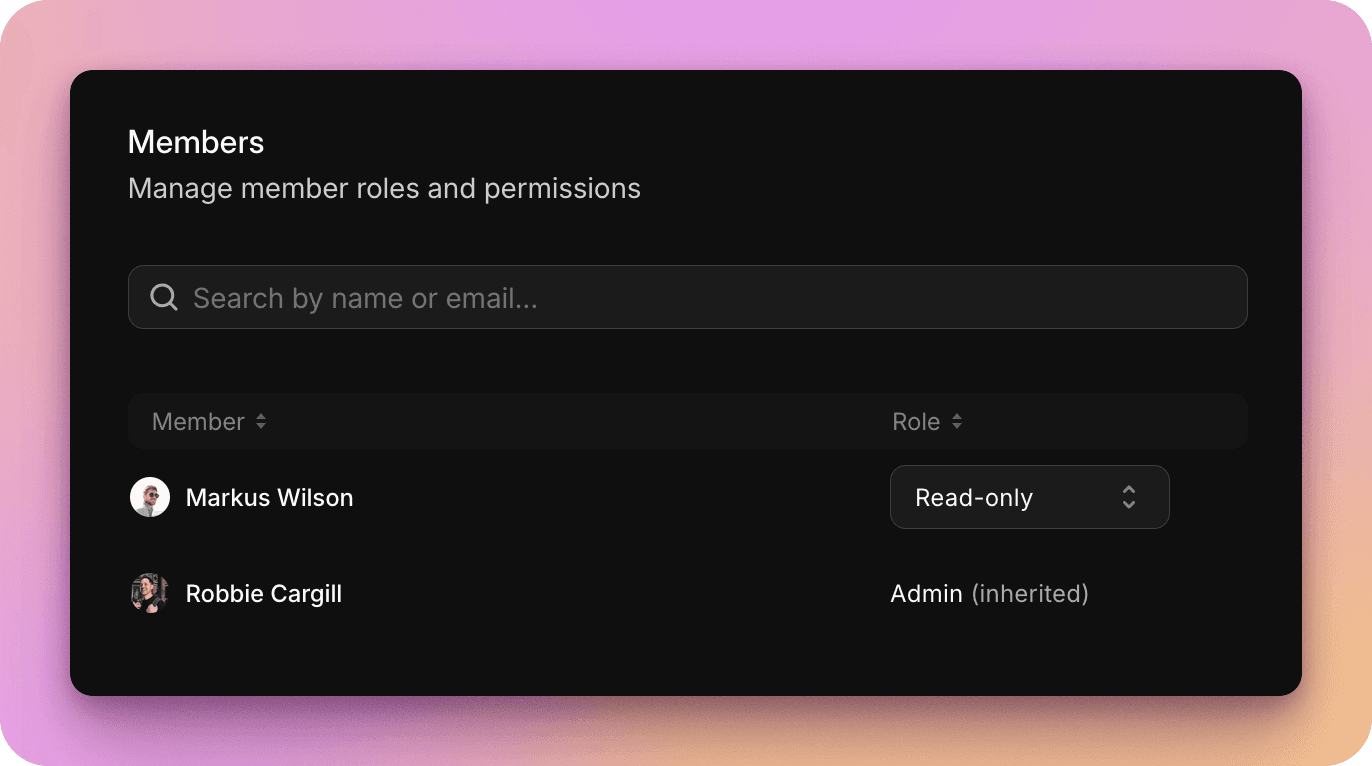
Users can be granted the following roles at the application level:
- Admin: Full access to the application settings, including ability to delete the application and all builds
- Developer: Access to manage all builds and releases, but cannot delete the application or alter critical settings
- Read-only: Can access builds and releases, and download, but cannot edit or delete any objects
External users
Of course for some users you wish to distribute builds and releases to, who may be external to your team, you may not wish to invite them into your workspace directly.
Instead, you may wish to:
- Selectively distribute releases to a group via email, using distribution groups
- Share build streams and/or releases via a portal
- Share simple links to download a build or release, with options to setup automated notifications via channels including webhooks or Slack
Bear in mind, only users you invite actually into you workspace are billed as users or count against your plan limits.