Slack
Send notifications to a Slack channel on application events
Introduction
You can trigger Slack notifications in response to key events in Buildstash, such as uploading a new build, or creating a release.
Connect your Slack team
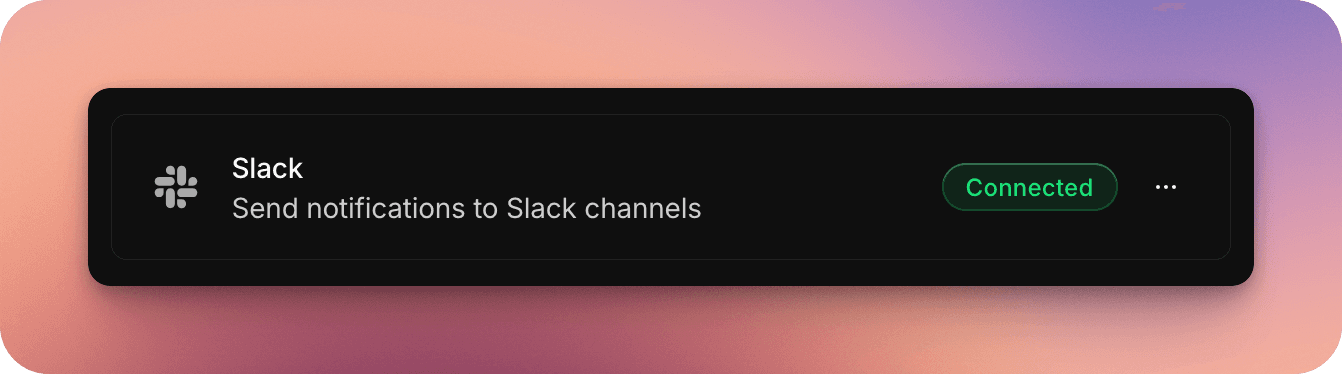
Before you can setup automated notifications, you need to connect your Slack team to your Buildstash workspace. To do so:
You'll be directed to Slack to confirm the installation of the Buildstash app, and you can select a default channel to post notifications to (don't worry you can easily override this later).
Note we limit the permissions we request to the minimum to allow us to:
- Allow you to select which channel to post notifications to in Buildstash
- Post to either a public channel, or a private channel you've specifically invited the Buildstash bot to
- Respond to direct mentions of the Buildstash bot
Setup Slack automations for your apps
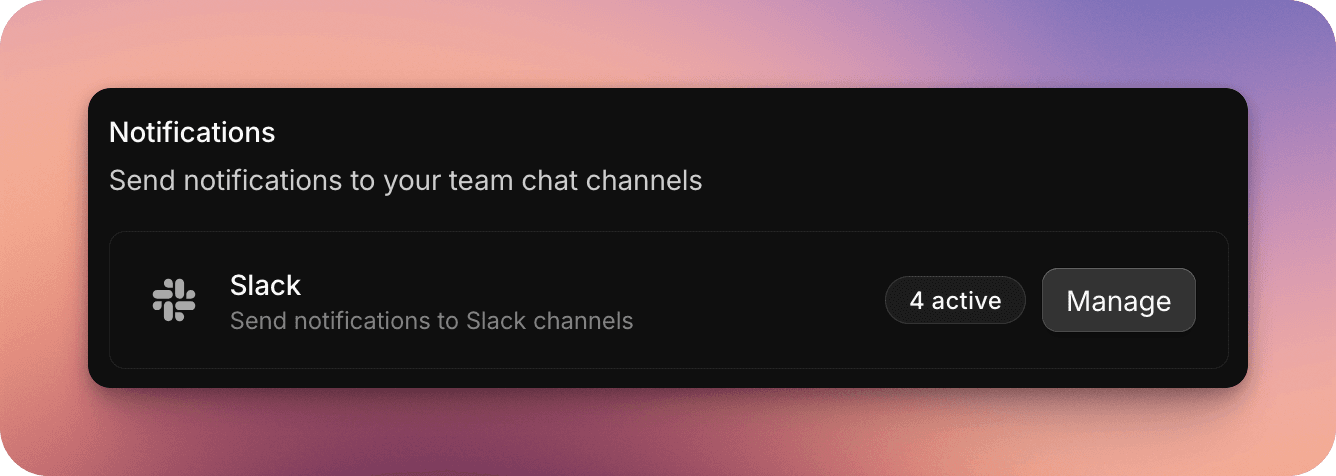
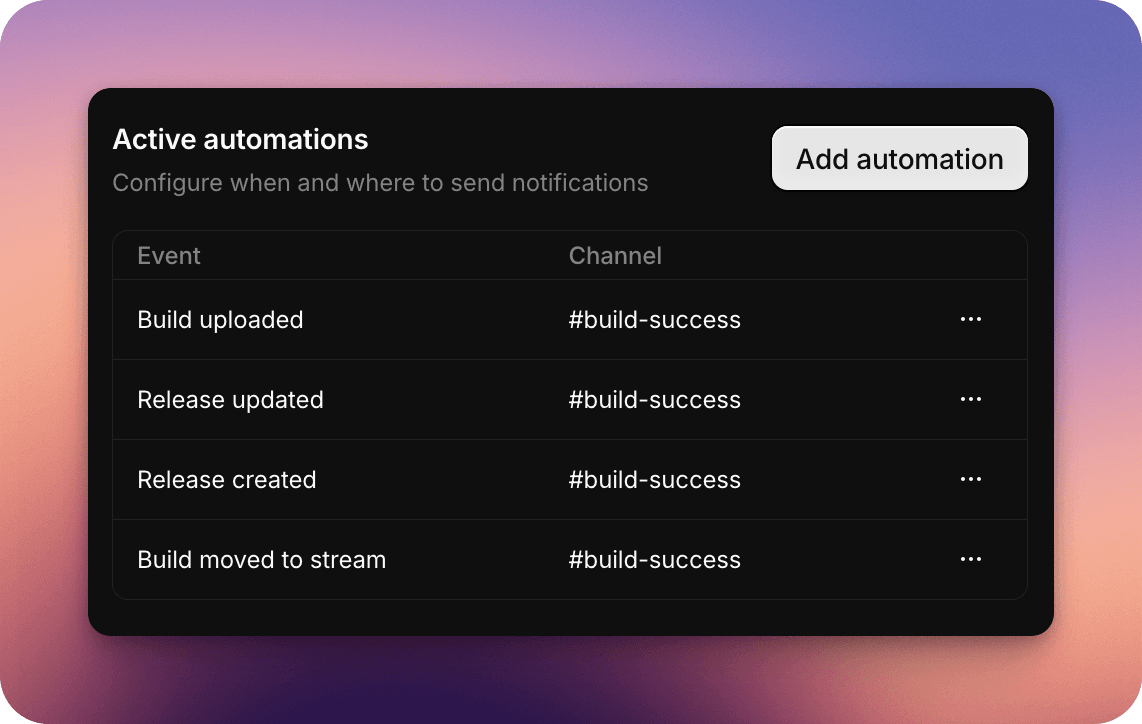
Next, you can setup automations which consist of an event trigger (when should we send a notification), and a target Slack channel (where should the notification be sent to).
Slack automations must be setup on a per-app basis. So remember and set this up for each app you want to automate Slack notifications for. Being per-app gives you the flexibility to post notifications to different Slack channels for different Buildstash apps, if you prefer.
To setup:
For each automation input:
- What event in Buildstash should trigger the notification
- Which Slack channel you'd like to send the notification to
Remember that the Buildstash bot can only see public Slack channels by default. If you'd like to post to a private Slack channel you'd have to first invite the Buildstash bot into that channel (within Slack), then you'll see the private channel as a selectable option in Buildstash for the automation.