Labels
Manage labels on builds and releases
Introduction
Labels can be attached to both builds and releases. Labels are customizable to your workflow, and can be used to keep track of build variants, stages, or any other categorization that is helpful.
Examples of labels which may be helpful could include: to-review, approved, issues-reported, sent-to-publisher, signed, etc.
Creating and editing labels
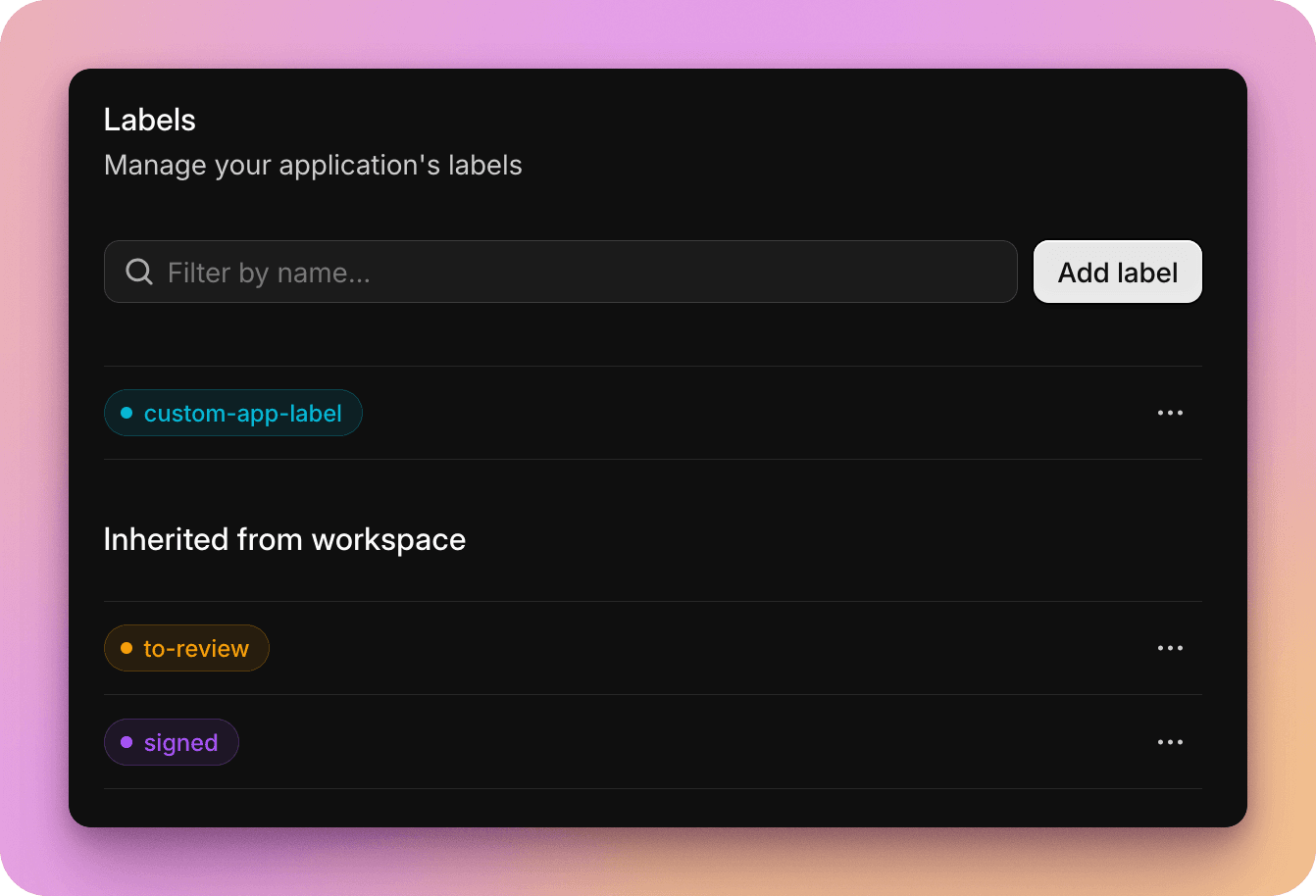
You can define labels at both the Workspace level (to be accessible to all applications in the workspace) or Application level (to be used in only that application).
If you create a label for an application, and then later want to share it across your workspace, you can also "promote" it later.
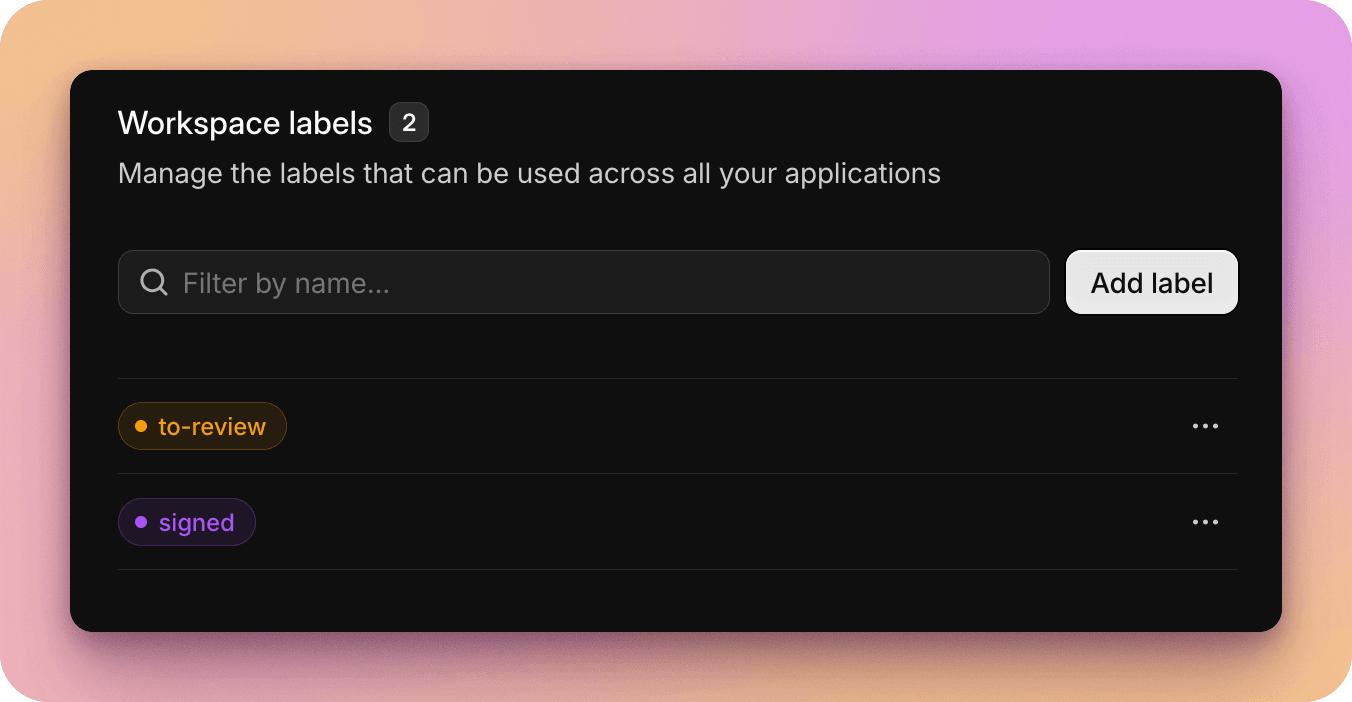
To manage workspace labels, go to your workspace settings > Labels.
For application labels, go to your application settings > Labels. Within your application label settings, you'll also see workspace level labels listed, which are accessible to this application.
Using labels
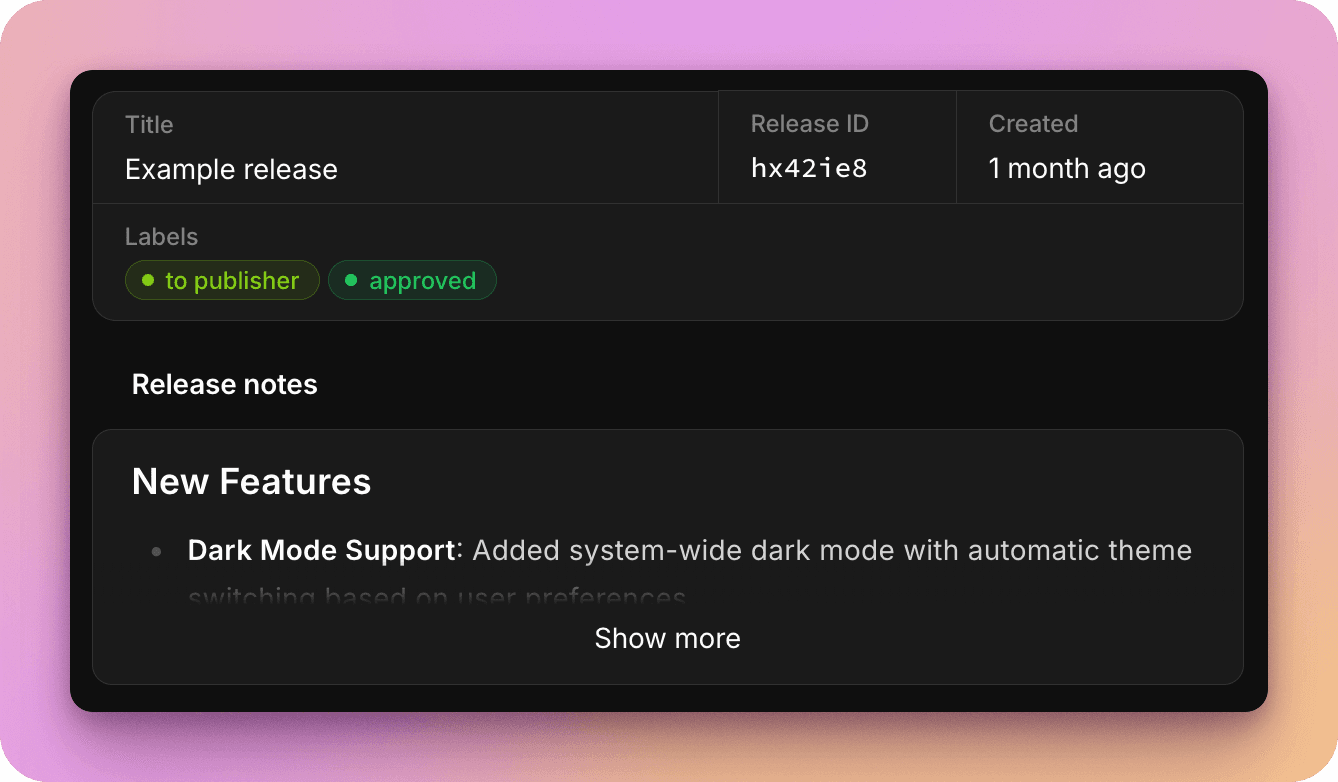
You can attach labels to both builds and releases.
To manage labels on a build:
- Specify labels when uploading via the web uploader
- Automatically apply labels in your CI/CD workflows
- Attach labels when uploading builds via API
- Update labels on an existing build via web interface or via API
To manage labels on a release:
- Specify labels when creating the release either via web interface or via API
- Likewise labels can be updated on existing releases via web or via API
Filtering by label
Labels can be a powerful tool to quickly filter for relevant builds or releases.