Unity Build Automation
Automate uploading your builds from Unity
Introduction
Unity DevOps users can connect to Buildstash, to automate uploading their builds from Unity Build Automation (formerly Cloud Build).
This integration lets you store all your Unity builds, as well as setting up rules for assigning streams and labels to particular builds. You can then share uploaded builds with your team or testers, attach to releases, and deploy - all within the Buildstash platform.
Importantly, once a build is uploaded Buildstash maintains the link to the original Unity build - storing relating build artifacts, and context like the Unity build log, and SCM branch and commit.
Configure Unity connection
In the Buildstash application you want to connect to Unity Build Automation, go to your application settings > Connections. Under "Add connection" select "Unity Build Automation".
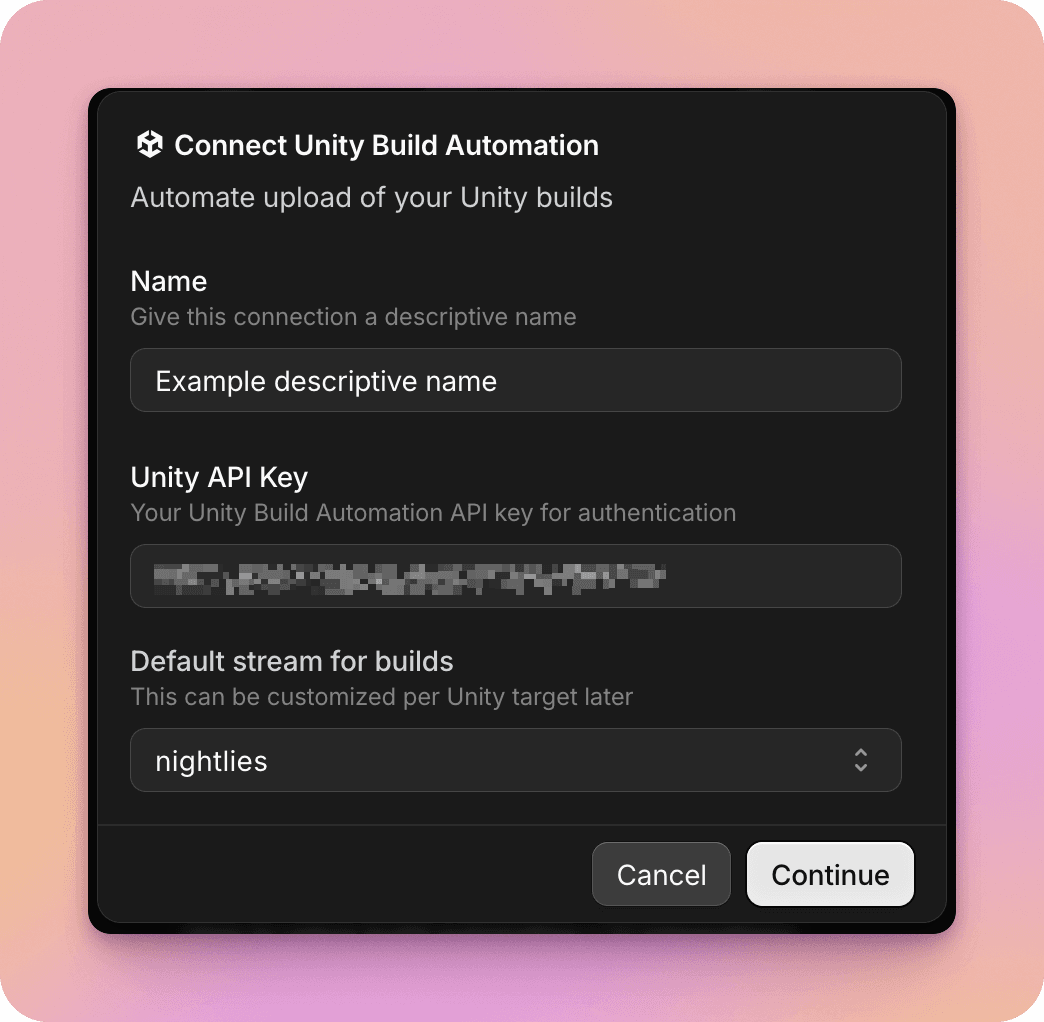
Provide a descriptive name for this connection (this is only used to help you identify the connection later), your Unity Build Automation API key (see below for where to find it), and a default stream which builds coming from Unity will be organized into in Buildstash (this can be customized further later).
In Unity DevOps, with the Unity project selected which you wish to connect, navigate to Build Automation > Settings, and scroll down to the "API settings" section.

Here you'll find the Unity API key you need to copy and paste into the "Connect Unity Build Automation" dialog in Buildstash.
On the next screen you'll find the webhook URL and authorization secret you'll need to input into Unity (see step 4).

You can also define Unity build targets, and further customize what stream builds from a specific target name should go into, or automatically attach certain labels.
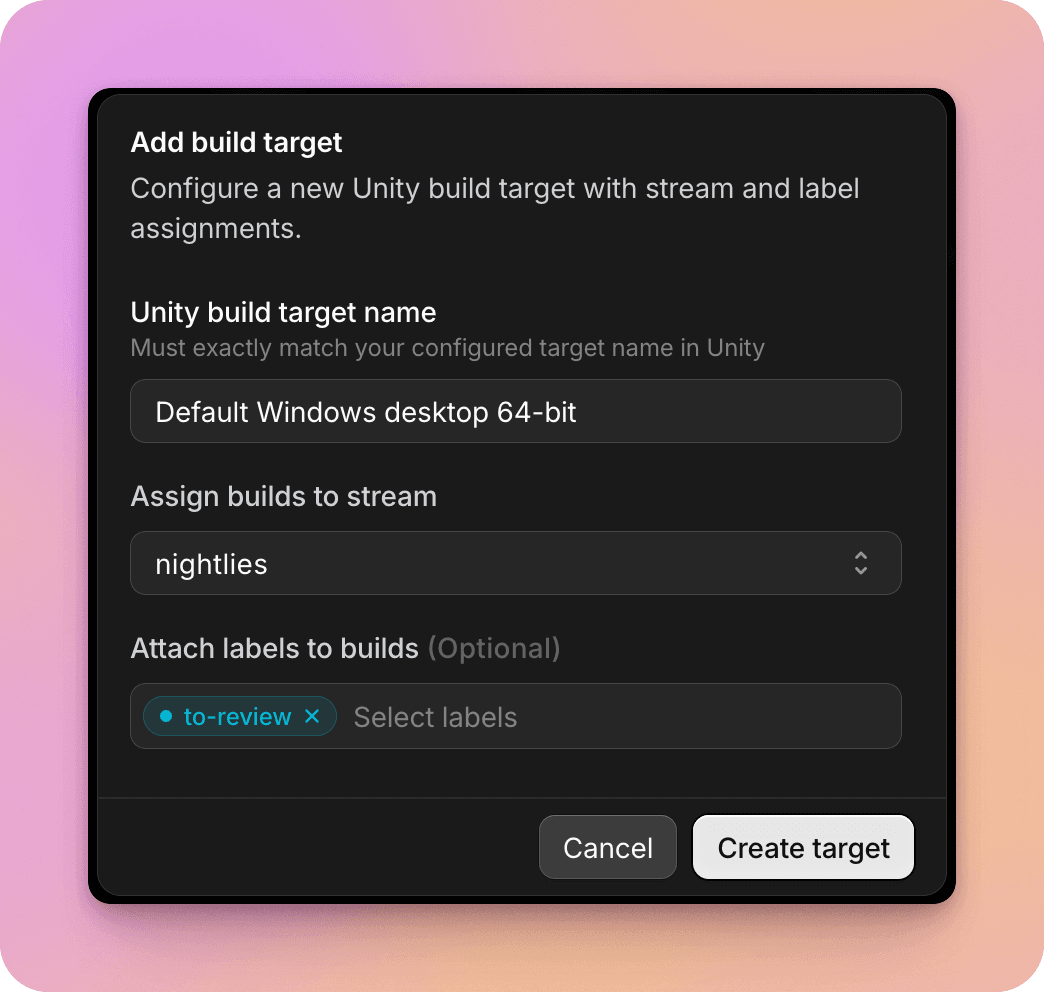
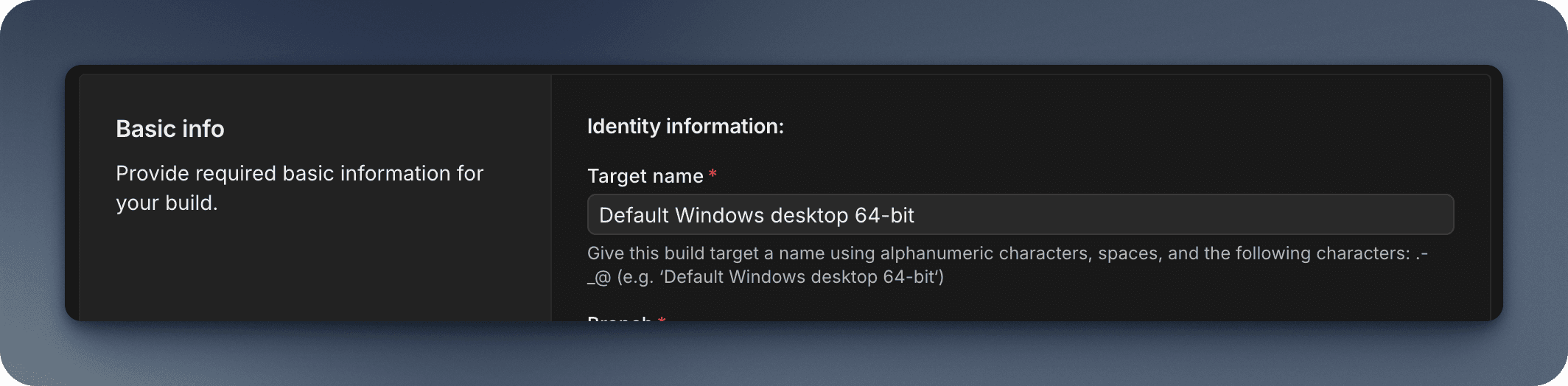
Note the target name must be an exact match for the string configured in Unity for the build to be directed into this stream / labels attached.
In the Unity Cloud portal, go to "Projects", and select the project you wish to connect to Buildstash. Under the project go to "Settings", and scroll down to "Project Integrations".
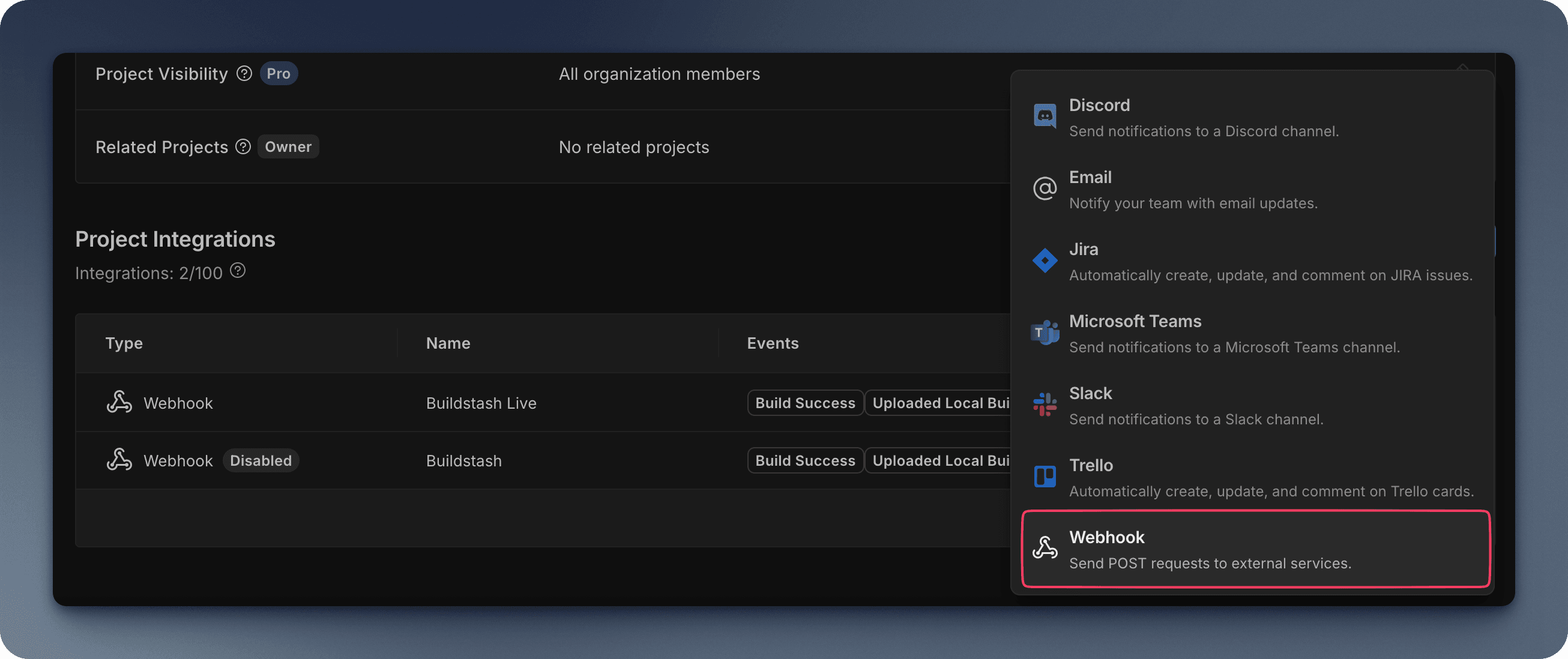
Here you want to add a new Webhook.

Enter the webhook URL, and authorization secret displayed in Buildstash from the previous step. For Authorization type select "HMAC-SHA256 Signature", and ensure Content type is set to "application/json".
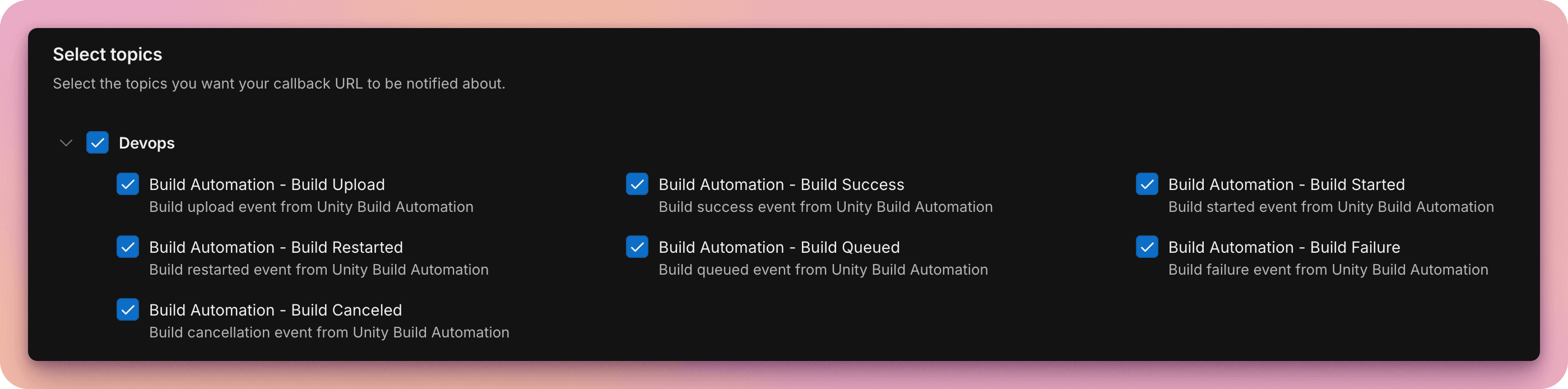
Further down the page, you need to select the "Devops" group, to inform Buildstash of all build events. We strongly recommend checking all of these "topics" to ensure functionality works as you expect, such as deeper integration and timeouts.
"Build Success" is essential at a minimum if you wish to auto-upload successful Unity builds to Buildstash.
Your Unity builds will now automatically upload to Buildstash.

More options
Timeout Unity builds
One limitation of Unity Build Automation at present is that there is no way in the UI to specify a timeout for your builds.
So, if a build unexpectedly stalls without failing, unless you notice and manually cancel it, you can wind up with it running for many hours unnecessarily, burning your build minutes, and costing you money!
To help with this, we built a helpful utility to set timeouts for your Unity Cloud builds from Buildstash:

When creating or editing a Unity target, you can check "Enable timeout utility". This will show two additional fields.
"Timeout if queued after" refers specifically to the time a Unity Cloud build is queued, but hasn't started building yet. When a build is in this state Unity should not bill it, so this is theoretically less harmful than it stalling while "building", but this can be inconsistent and frustrating nonetheless.
When Buildstash receives a webhook event from Unity informing us that a build has been queued, the timer will start, and remain active until the build has left "queued" or "sent to runner" states, and started building.
"Timeout build after" starts when Unity informs us the build has actually started building on the runner. The timeout will remain active until the build reaches any end state, whether failed, completed, or cancelled.
When a build times out, Buildstash will instruct Unity to cancel it via API request. Please note, while this should reliably cancel the build, providing the Unity API key you provided is correct and webhook events setup correctly, this ultimately relies on Unity.
You can browse timeout events, and all other build pipeline events Buildstash is aware of, in the "Pipeline log" view.
Pause auto-uploads
If you wish to temporarily stop auto-uploads of your builds from Unity to Buildstash, without having to delete the connection, you can simply toggle "pause auto-upload" on.
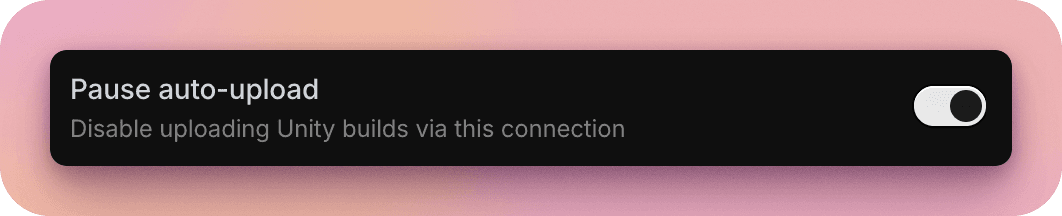
This ability may also be helpful if you wish to use our automated Unity Build Automation integration for features like auto-timeout, but perhaps use a different method of sending builds into Buildstash, such as the fastlane plugin.